
How kids bypass Screen Time on iPhone
Kids bypass Screen Time on iPhone seven ways: changing the clock, asking Siri, deleting and reinstalling an app, pressing Ignore Limit, opening another browser, using an always-allowed app, and turning Screen Time authorization off.
Each one has a tell and a fix. This page is the long version of our loophole posts, in one place, with the Apple switch and the SimpleSentinel rule side by side. Nothing here closes every door forever; one of the seven is Apple's own design and the best any app can do is tell you.
One price, unlimited children and devices. 7-day free trial, billed by Apple.
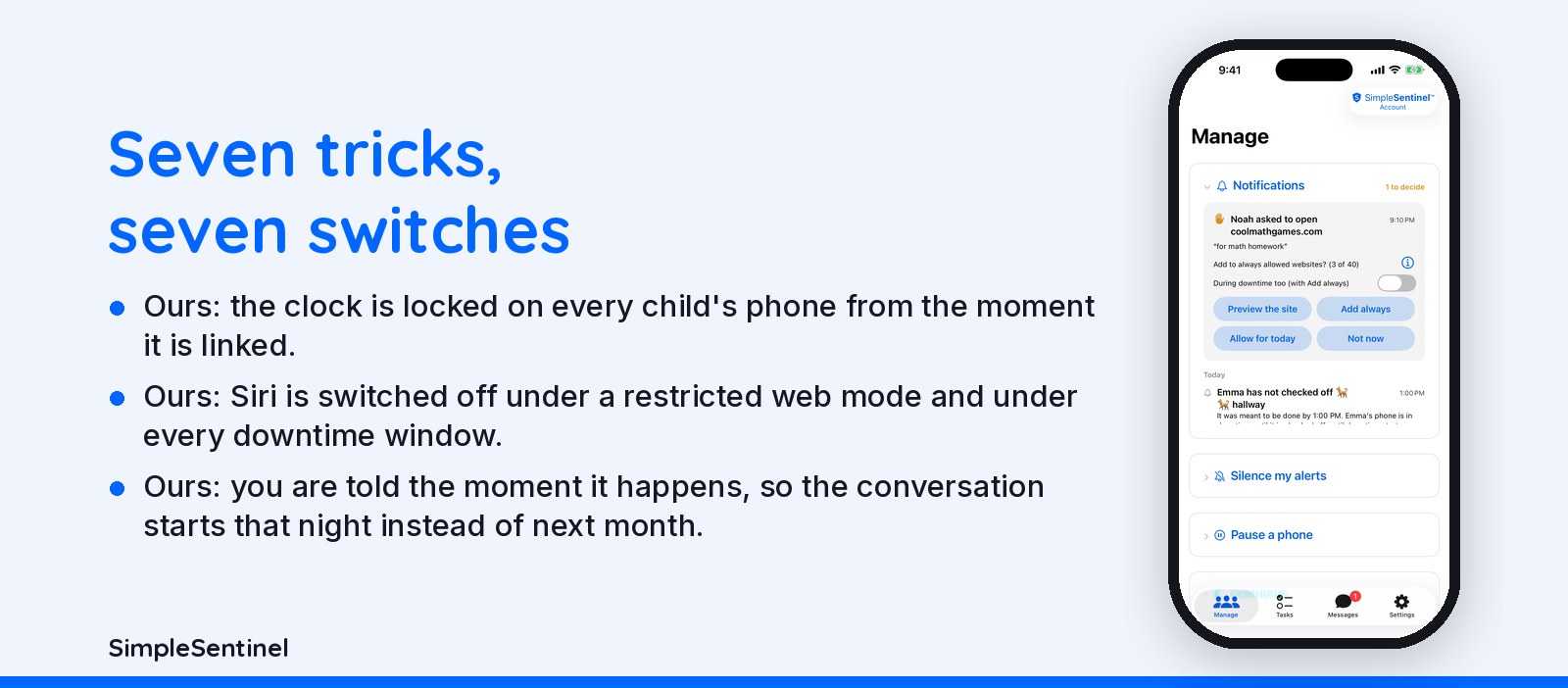
Seven tricks, each with its tell, the Apple fix, and our rule
Tricks 1 to 4: the clock, Siri, delete and reinstall, Ignore Limit
The clock. Tell: Downtime ends early and the phone's time is wrong. Apple: Set Automatically on, Setting Time Zone locked under Location Services. Ours: the clock is locked on every child's phone from the moment it is linked. Siri. Tell: a blocked site still shows up in history with no browser open. Apple: Siri & Dictation off under Allowed Apps. Ours: Siri is switched off under a restricted web mode and under every downtime window. Delete and reinstall. Tell: an app's limit is gone and the app is new again. Apple: Deleting Apps off, Ask to Buy on. Ours: deleting and installing both ask your permission. Ignore Limit. Tell: the limit shows as reached and the app still opens. Apple: Block at End of Limit on.
Tricks 5 to 7: another browser, an always-allowed app, authorization off
Another browser. Tell: Safari is blocked and Chrome has history. Apple: block the web under Web Content so the on-device filter covers every browser, and set an age ceiling so new browsers cannot be installed. Ours: the same filter, with your own allow and block lists per child. An always-allowed app. Tell: Downtime is on and one app still opens for hours. Apple: trim the Always Allowed list to Phone and Messages. Ours: each downtime window has its own always-accessible list. Authorization off. Tell: every rule stops at once. Apple: there is no fix; a child can turn Screen Time authorization off on their own phone, Apple designed it that way, and no app can stop it. Ours: you are told the moment it happens, so the conversation starts that night instead of next month.
A checklist to run once
On the child's phone: Set Automatically on and the time zone locked; Content & Privacy on with Allow Changes off; Deleting Apps off; Ask to Buy on; Web Content set, not just app limits; Siri off under Allowed Apps if the web is restricted; Always Allowed trimmed. On your phone: a different Screen Time passcode than any the child has seen. Then, after every iOS update, walk the list again, because Apple does not tell you which switch moved.
✓ The clock is locked
A child's phone keeps network time from the moment it's linked, so there's no changing the time to end downtime early or skip a chore. Screen Time has no such lock; SimpleSentinel does, on every child's phone, all the time.
Pricing
Founding Family (First 1,000 Families)
7-day free trial. Unlimited children and devices.
$9.99/mo
or $99.99/yr
About 28 cents/day for every device & child.
Your price never goes up as long as you stay subscribed.
Regular Price
7-day free trial. Unlimited children and devices.
$16.99/mo
or $149.99/yr
About 41 cents/day for every device & child.
Compare to A locked-down phone @ $1,000/yr per child.
© 2026 Jubilee Industries LLC. SimpleSentinel™ is a trademark of Jubilee Industries LLC. Patent pending.


