
Articles
The Siri loophole in Screen Time, and how to close it
You set up Screen Time on your child's iPhone. You chose "Limit Adult Websites," or you went further and allowed only the sites on your list. You checked it in Safari, and it held. Then one evening you hear your child ask Siri a question, and Siri answers with a web page, pictures and all.
That is not a bug in your setup. It is a door that was never on the same wall as the browser.
Why the web filter does not cover Siri
Apple's web filter watches the browser: Safari, and the little browsers that open inside other apps. Siri does not open a browser. It fetches the answer itself, reads it out loud, and shows the page and its images on screen. Because no browser was opened, the filter has nothing to inspect.
Apple does have a switch for this. It lives in a different place: Settings, Screen Time, Content & Privacy Restrictions, then Siri, where "Web Search Content" can be set to "Don't Allow." It is three menus away from the web filter, it is not mentioned there, and most parents never see it. The ones who do find it usually find it the way you may have just now: after a child showed them.
The same shape repeats with other doors. The search bar on the home screen reaches the internet. Some apps carry a browser inside them. Each one has its own switch, somewhere else.
Closing it in Screen Time
If you are managing Screen Time by hand, the fix is to make that trip:
1. Settings, then Screen Time.
2. Content & Privacy Restrictions.
3. Content Restrictions, then scroll to the Siri section (on some iOS versions the heading reads "Allowed Content").
4. Set "Web Search Content" to "Don't Allow," and "Explicit Language" to "Don't Allow" while you are there.
Then check it: ask Siri on your child's phone to show you pictures of something. If it answers with a web result, the switch did not take.
You will want to repeat the check after iOS updates, and on every one of your children's devices, because the switch is per device.
What SimpleSentinel does instead
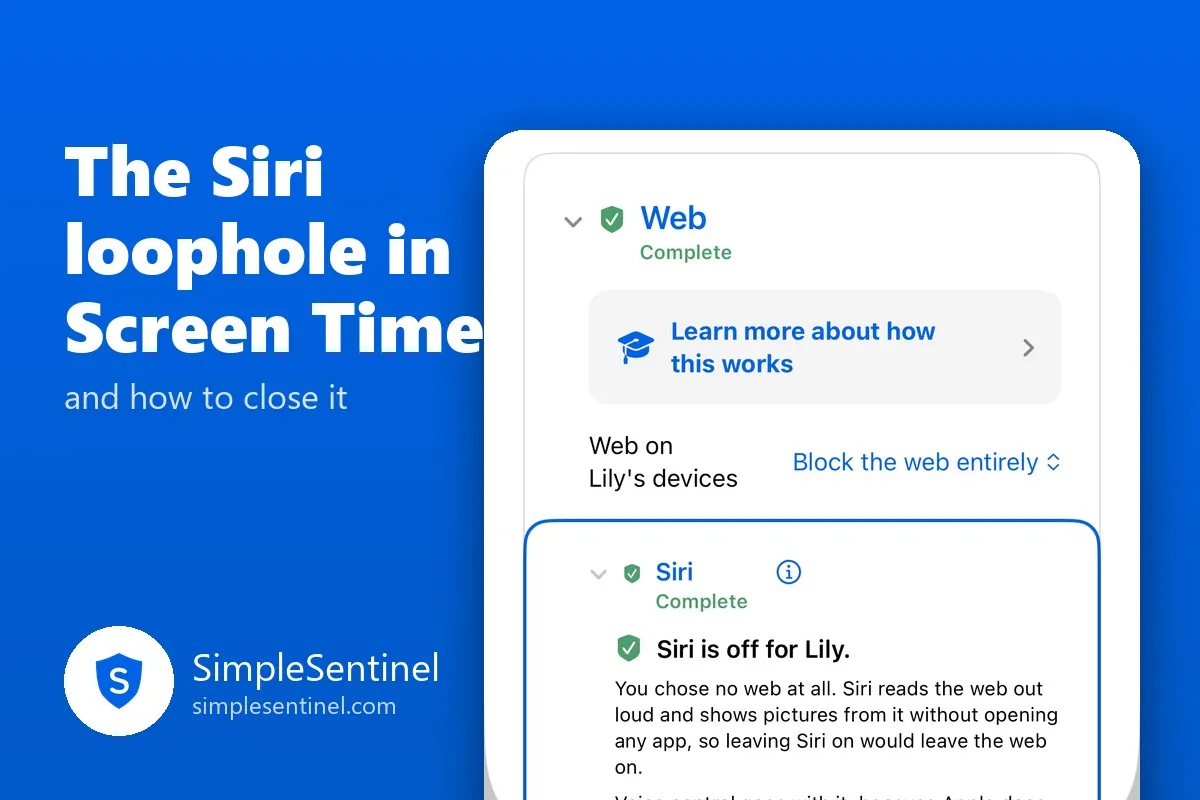
SimpleSentinel puts the web decision in one place, on your own phone, for every child. In each child's settings, under Web, you choose how the web works on their devices: allow it freely, limit adult sites, allow only the sites you approve, or block the web entirely. Your lists of sites to always allow and always block sit right under it.
The Siri switch is in the same drawer, not three menus away. And when you choose "Only sites I approve" or "Block the web entirely," SimpleSentinel switches Siri off for you, because leaving Siri on would leave the web on. The app says so on the screen in its own words: "Siri reads the web out loud and shows pictures from it without opening any app, so leaving Siri on would leave the web on." Alarms and timers still work in the Clock app, and 911 and Emergency SOS always work.
Every rule you set is read back from the child's phone, so the green shield on their card means the rule is in force on the device, not only saved on yours.
The habit that matters
Whichever way you manage it, the loophole teaches one thing worth keeping: a filter is only as good as the doors it covers. When you set a rule, ask what else on the phone can reach the same place. Siri is the biggest one. The clock is another, and that is its own story.
SimpleSentinel is a parental control app for iPhone and iPad. One plan covers every child and every device, with a 7-day free trial. [Get it on the App Store](https://apps.apple.com/us/app/simplesentinel/id6799535985).

© 2026 Jubilee Industries LLC. SimpleSentinel™ is a trademark of Jubilee Industries LLC. Patent pending.


