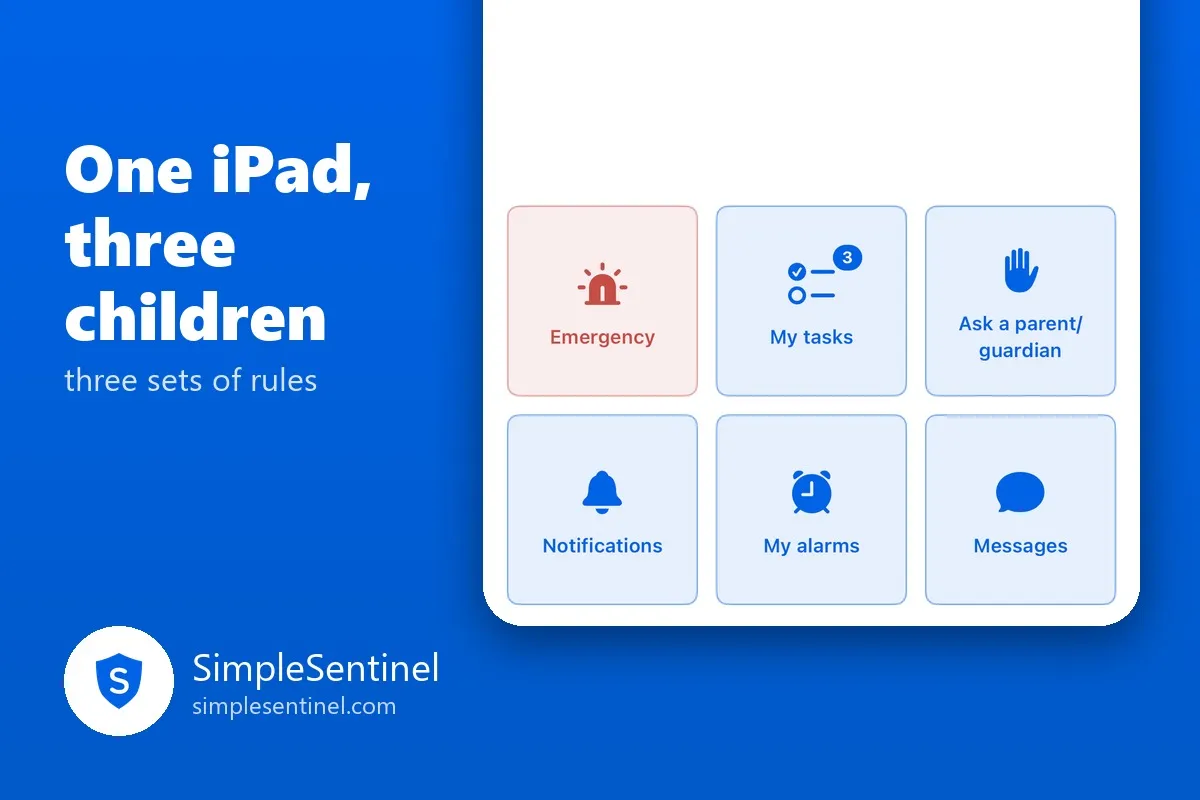
Whose turn? One iPad, three children, three sets of rules
Most families with more than one child have one iPad. Apple's Screen Time assumes one device belongs to one child, so the iPad either runs the youngest's rules for everyone, which the oldest resents, or the oldest's rules for everyone, which the youngest should not have. The usual fix is a parent standing over the device changing settings, which is not a fix.
A shared device should ask who is holding it, and then be that child's device until it is put down.
Whose turn?
When nobody is signed in, every app on the iPad is covered, and the screen asks "Whose turn?" The child picks their name, types their own four-digit private code, and taps Switch. From that moment the iPad runs that child's rules: their web filter, their content ratings, their downtime, their tasks, their alarms. A sibling's lock does not get in the way, because the code proves who is holding the device.
A code that is wrong three times in a row is reported to you. Five wrong tries cool the device off for ten minutes.
Signed in, and signing out
The signed-in screen says who is in and shows one button: I'm done. The rule under it is plain: put the device down for five minutes and it locks itself; you stay signed in for up to four hours, or until your downtime starts; tap I'm done when you hand it over.
So a sign-in ends five ways, and none of them need a parent: the child says they are done, the device sits untouched for five minutes, the span runs out, midnight comes, or that child's downtime begins. Five minutes before a timed sign-out, a banner asks "Still using this?" and a tap plus the code keeps going. A child who walks away leaves a locked device, not an open one for a sibling to inherit.
Each child can ask to change their own code. The ask lands on your phone with a yes or no, and you can always see the current code.
From the parent's phone
You see who is signed in on the device's row, and you can switch it to any child from your phone with no code at all. Messages, tasks and alarms for a child reach the iPad only while that child is signed in, so Owen's alarm never rings while Mae is drawing.
Setting it up
One step on the device, once. On the iPad's row in your app, Auto-lock gives you a one-time code. Type it on the iPad, and in the screen Apple opens choose "All Apps & Categories" at the top and press Done. That is what lets the device cover everything when nobody is signed in. Then set each child's private code from your phone, and the iPad is ready to ask whose turn it is.
If a child has no code yet, the screen says so and names the fix: a parent sets it in SimpleSentinel on their phone.
What changes at home
The iPad stops being the thing the children argue about and becomes the thing they sign in to. The youngest gets the youngest's rules. The oldest gets theirs. The parent gets to stay on the couch.