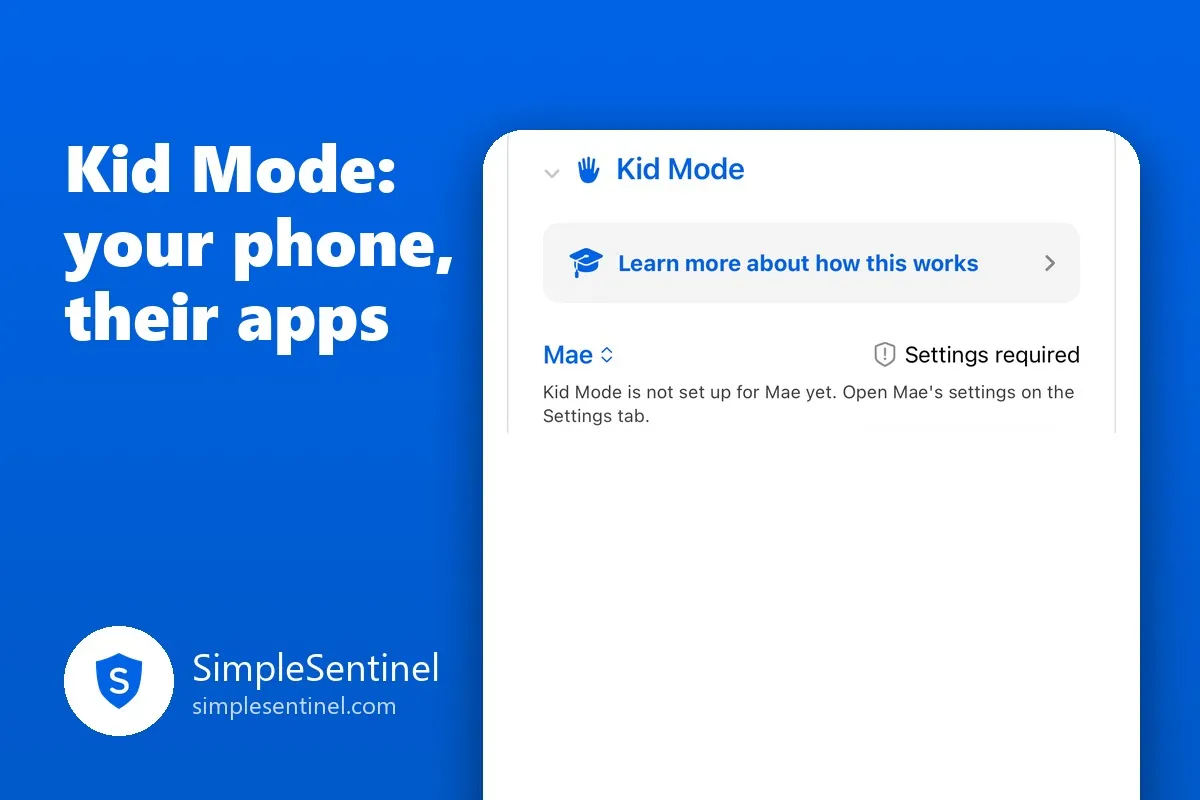
Kid Mode: handing a toddler your phone without the texts to your boss
The pediatrician is running forty minutes late. The phone is the only thing in the room that will buy you forty minutes of peace. You hand it over, and a part of you spends the whole time wondering what a three-year-old can reach from the home screen: your email, your photos, a text to your boss that says "jjjjjjjjjj."
Apple's answer is Guided Access, which locks the phone to one app. Fine for one video. Not fine for a child who wants the drawing app, then the puzzle, then the video. Kid Mode is for a set of apps.
What Kid Mode is
Kid Mode lives on your own iPhone, not the child's. Turn it on for a child and only the apps you chose for that child open. Everything else is shielded: Messages, Mail, Photos, Safari, the App Store, your banking app. The child's own settings carry over, so the web filter, content ratings, spending rules and game settings you set for them apply on your phone too for as long as Kid Mode runs.
There is no timer, on purpose. Kid Mode ends one way: you open the app and use your Face ID or passcode. A child tapping around cannot end it, and a child who asks a sibling cannot either.
While it runs, Siri is off. On your phone Siri is your Siri: it could send texts as you, call your contacts, and read web answers past every filter. Installing and deleting apps are blocked, and purchases always need a password. Emergency calls work in and out of Kid Mode; Apple lets nobody lock the Phone app, and that is right.
Setting it up
In the child's settings there is a zone called Kid Mode on my device. Three steps:
- Your phone needs a passcode. Kid Mode is a lock, and a lock needs a key.
- Finish the child's content ratings, web, spending and games settings, because Kid Mode uses them here.
- Allow SimpleSentinel to manage this device's apps. Apple asks once. Then choose the apps to allow.
The app picker is Apple's own, and the rule is plain: anything you pick opens, whatever it is rated. Your list is the whole rule. Apps are picked per device, so the iPad can have a different set from your phone.
A child with no phone of their own can still be set up for Kid Mode, which makes it the right first step for a family whose youngest borrows rather than owns.
Turning it on
On the Manage tab, the Kid Mode card: choose a child, flip the switch, hand over the phone. The child sees a green shield, "Kid Mode active for Mae," and a line that says the chosen apps open and everything else is paused until a parent turns it off. Under it are three tips, and the first is worth taking: turn on Do Not Disturb, so your banners stay off the screen while they play.
To end it: open the app, tap the button, Face ID. The end card reminds you that Siri was switched off, with the two-second side-button hold that turns it back on, because Apple only lets a person do that.
Honest limits
Do Not Disturb cannot be locked on your own phone; a determined child could find Control Center. Downtime windows do not apply in Kid Mode, since those belong to a child's own device. And family alerts to your phone are held while it runs, so you will see them when Kid Mode ends.
The forty minutes
That is the feature: your phone, their apps, your face to get it back. The waiting room is still a waiting room. But the part of you that was watching the home screen gets to read a magazine.